
In this guide (12 sections)
- First, identify the noise
- 1. The GPU is simply under heavy load
- 2. Your frame rate is uncapped
- 3. Something is using the GPU in the background
- 4. Dust is choking the heatsink
- 5. Your case isn’t getting enough airflow
- 6. The default fan curve is too aggressive
- 7. The fans keep revving up and down
- 8. Undervolt the GPU
- 9. A fan bearing is wearing out
- When to consider new thermal paste
- Real cases: what other users ran into
Your graphics card sounds like a small jet engine, and you want to know whether something’s wrong and how to make it stop. Good news first: in most cases nothing is broken, and the fix takes a few minutes.
Quick fix
Try these four things in order. Together they solve the large majority of loud GPU fans:
- Check what’s using the GPU. Open Task Manager (Ctrl + Shift + Esc), sort by the GPU column and close anything using it while you’re on the desktop.
- Cap your frame rate a little below your monitor’s refresh rate (for example 140 FPS on a 144 Hz screen), in-game or in the NVIDIA/AMD driver settings.
- Clean the dust out of the card’s heatsink and the case filters with compressed air, holding the fans still.
- Set a gentler fan curve in MSI Afterburner so the fans stay slow until the card is properly warm.
Hearing grinding or rattling instead? That’s mechanical, usually a worn fan bearing. Jump to fan bearing problems.
If that didn’t do it, or you want to understand what’s going on, read on. The first step is working out what kind of loud you’re dealing with, because a steady whoosh while gaming and a rattle on the desktop have completely different causes.
First, identify the noise
| What you hear | When | Most likely cause |
|---|---|---|
| Steady rushing air (“whoosh”) | While gaming or rendering | Normal cooling under load. Can be reduced, but nothing is broken |
| Loud whoosh on the desktop | Idle, nothing open | A background app using the GPU, or dust and high temperatures |
| Fans revving up and down every few seconds | Light load or idle | Fan curve or zero-RPM mode switching on and off |
| Grinding, rattling, scraping | Any time the fans spin | Worn fan bearing, or a cable touching the blades |
| Clicking or ticking | Any time | Something touching a fan blade |
| High-pitched whine or buzz that changes with FPS | Under load, menus, loading screens | Coil whine, which comes from the card’s electronics, not the fans |
If you’re hearing coil whine rather than fan noise, the fixes are different. A quick way to tell them apart: fan noise follows temperature, rising slowly as the card heats up and fading slowly as it cools. Coil whine follows frame rate, so it appears and changes pitch instantly when you open a menu or a loading screen, even while the card is still cool.
1. The GPU is simply under heavy load
When you game, the GPU can draw a lot of power, and all of that ends up as heat. The fans speed up to move it away. A modern graphics card running a demanding game at high settings will be audible on most designs.
How to check: install a monitoring tool such as HWiNFO or MSI Afterburner and look at GPU temperature, usage and fan speed while you play.
- GPU usage near 100% and temperature in a normal range: the card is doing its job. Use the fixes below to make it quieter, not to fix a fault.
- Temperature climbing towards the card’s limit: something is limiting cooling. Check dust, airflow and thermal paste further down.
Most modern GPUs run somewhere around 65–85°C in games. Each card has its own limits, so check the manufacturer’s specifications for your model before deciding a temperature is “too hot”.
2. Your frame rate is uncapped
This is one of the most common causes and one of the easiest to fix, so it’s the first thing we’d check. If a game, especially a menu or a lightweight older title, is rendering hundreds of frames per second, the GPU runs flat out for no visible benefit. Fans spin up and you may also hear coil whine.
Fix: cap your frame rate a little below your monitor’s refresh rate.
- In-game: look for “Frame rate limit”, “Max FPS” or turn on V-Sync.
- NVIDIA: NVIDIA Control Panel → Manage 3D settings → Max Frame Rate.
- AMD: AMD Software: Adrenalin Edition → Gaming → Graphics → Frame Rate Target Control (or Radeon Chill).
On a 144 Hz monitor, a cap of around 140 FPS keeps things smooth while letting the card work far less in easy scenes.
3. Something is using the GPU in the background
If the fans are loud when you’re “doing nothing”, something probably isn’t doing nothing.
How to check: open Task Manager (Ctrl + Shift + Esc) → Processes, then click the GPU column to sort by GPU usage. On the desktop it should be close to 0–5%.
Common offenders:
- Browsers playing video with hardware acceleration
- Animated wallpaper apps
- RGB and peripheral software
- Game launchers left open in the background
- Unwanted software such as cryptominers. If you see high GPU use from something you don’t recognise, run a malware scan.
4. Dust is choking the heatsink
Dust builds up between the heatsink fins and on the fan blades. Less air gets through, the GPU runs hotter and the fans spin faster to compensate. If your card is a year or two old and has never been cleaned, this is very likely part of the problem.
Fix:
- Shut down the PC and switch off the power supply.
- Take the side panel off. Use compressed air in short bursts to blow dust out of the heatsink fins, ideally from the back of the card towards the front.
- Hold each fan still with a finger or a plastic tool while you spray. Letting compressed air spin a fan at very high speed can damage its bearing.
- Clean the case dust filters too, especially the front intake.
5. Your case isn’t getting enough airflow
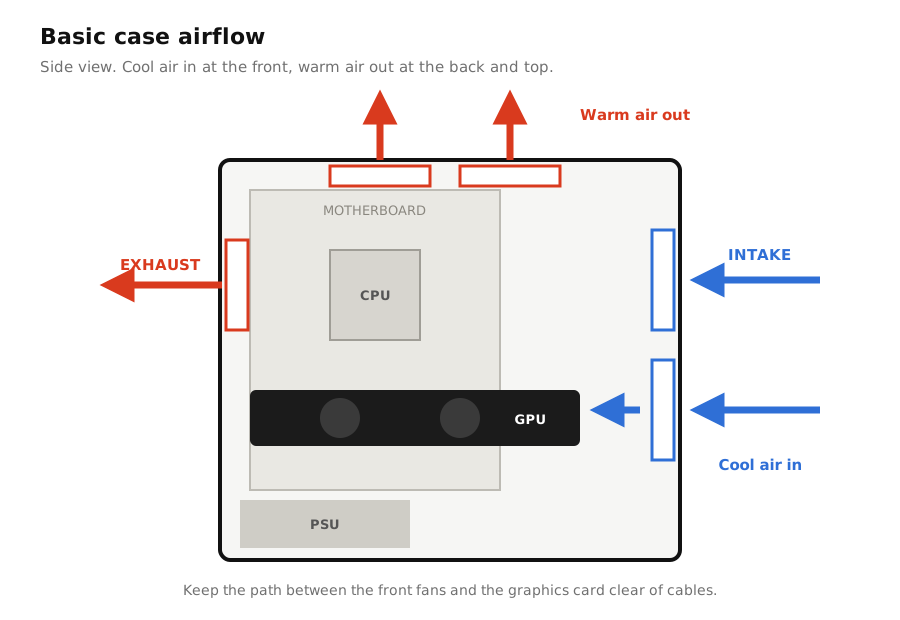
A GPU can only be as cool as the air around it. If the case traps hot air, the GPU breathes its own exhaust and the fans speed up.
Quick test: remove the side panel and play for 15 minutes. If temperatures drop noticeably and the fans calm down, airflow is your problem.
Fixes:
- Make sure you have at least one front intake fan and one rear exhaust fan.
- Check fan directions. Every fan has arrows on its frame showing airflow and spin direction.
- Avoid cases with solid glass fronts and tiny vents if you have a powerful GPU.
- Keep cables out of the path between front fans and the graphics card.
6. The default fan curve is too aggressive
Many cards ship with fan curves tuned to keep temperatures low, not to keep noise down. You can usually trade a few degrees for a much quieter PC.
Fix: set a custom fan curve in MSI Afterburner, which works with most NVIDIA and AMD cards, or in AMD Adrenalin’s tuning section.
- Open Afterburner → Settings → Fan tab.
- Tick Enable user defined software automatic fan control.
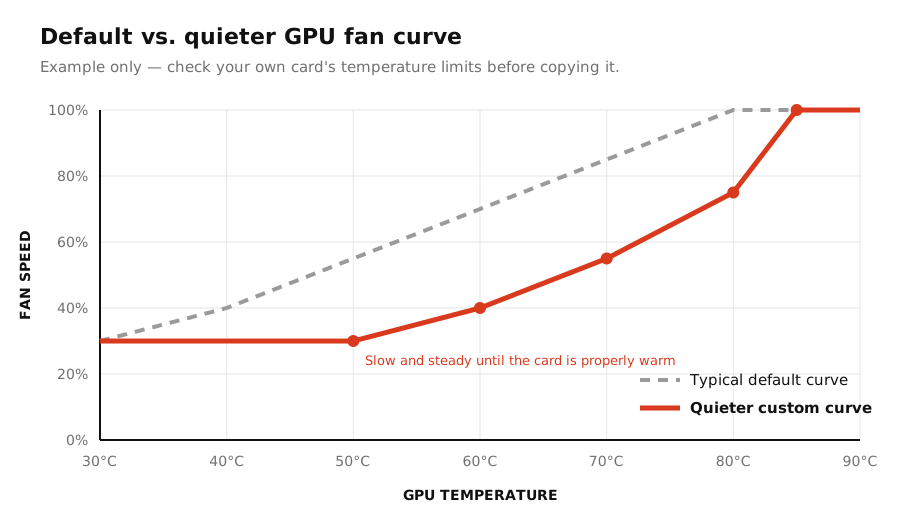
- Drag the points so the fans stay slow until the GPU is properly warm, then ramp up gradually.
A reasonable starting point:
| GPU temperature | Fan speed |
|---|---|
| Below 50°C | 30% or off (zero-RPM) |
| 60°C | 40% |
| 70°C | 55% |
| 80°C | 75% |
| 85°C+ | 100% |
Test it with a demanding game for 20–30 minutes. If temperatures stay within your card’s normal range, keep it. If they climb too high, bring the curve back up a little.
7. The fans keep revving up and down
Many cards have a zero-RPM mode: the fans stop completely at low temperatures and start again once the GPU warms past a threshold, often around 50–60°C. If your idle temperature sits right on that line, the fans start, cool the card a few degrees, stop, and repeat. That on-off cycle is more annoying than a steady quiet hum.
Fix: either turn off zero-RPM mode, so the fans spin slowly all the time, or set a custom fan curve with a constant low speed (around 30%) at idle temperatures. In Afterburner, a flat section at the bottom of the curve stops the pulsing.
8. Undervolt the GPU
Undervolting means running the GPU at a slightly lower voltage for the same clock speed. Less voltage means less power, less heat and slower fans, often with little or no performance loss. It’s one of the most effective ways to quieten a card that’s working as intended.
It’s a more advanced step and every chip behaves differently, so take it slowly and test for stability after each change.
9. A fan bearing is wearing out
If you hear grinding, rattling or a rough “motorbike” sound that’s present at certain speeds, and especially if it’s worse on cold starts, a fan bearing is probably failing. This won’t fix itself.
How to confirm: with the side panel off and the PC on, set the fans to different speeds in Afterburner and listen closely to find which fan is making the noise. Also check that no cable is touching the blades.
Fixes:
- Under warranty: contact the card manufacturer. Fans are a common warranty repair.
- Out of warranty: replacement fan sets for many popular models are sold online. Search for your exact card model, as fan connectors and sizes vary.
When to consider new thermal paste
Thermal paste between the GPU chip and its heatsink can dry out after several years. If your card is old, already clean, has good airflow and still runs much hotter than it used to, repasting can help.
Opening a graphics card is riskier than repasting a CPU, and it may void your warranty. Check your warranty first, and only do it if you’re comfortable working with small screws and thermal pads.
Real cases: what other users ran into
These are real reports from PC hardware forums, summarized in our own words. They show how the same symptom can have very different causes, and that the fix isn’t always on your side.
Fans maxing out in a game’s main menu
An owner of an overclocked Radeon RX 480 noticed the fans spinning loudly and the card hitting about 80°C as soon as the Apex Legends main menu loaded, with GPU usage stuck at 100%. Lowering the graphics settings didn’t help. Other users pointed out that the menu was running with an uncapped frame rate and suggested limiting FPS. The poster reported fixing it by lowering the card’s power limit in AMD’s Wattman, while another user cautioned that reducing the overclock would be a safer route. (EA Forums)
Takeaway: if a card works hard in a menu, that’s the uncapped frame rate problem from cause 2. A frame rate cap is the simplest fix.
One fan rattling every time it spins up
A GTX 1070 owner found that one of the card’s two fans rattled whenever it started spinning, then stopped when it should have kept running. Forum members diagnosed a faulty fan, most likely a dried-out bearing, and the poster ordered replacement fans. (BleepingComputer)
Takeaway: a rattle that comes and goes with the fan speed is mechanical. Cleaning and software won’t fix it; replacing the fan will. See cause 9.
Fan stuck at 100% on the Windows desktop
A user with a brand-new GTX 780 found the card was quiet while booting, but its fan jumped to 100% as soon as Windows loaded the NVIDIA driver, even when idle. Moving the fan slider did nothing, and a clean driver reinstall didn’t help. The poster replaced the card with a different model and reported it was near silent. (Quarter To Three forums)
Takeaway: if the fans ignore every speed setting you give them, the card itself may be faulty. If it’s new or still under warranty, contact the seller or manufacturer rather than spending hours on software fixes.
Fans switching on and off every few seconds
An Intel Arc A580 owner reported the fan stopping and restarting every 5–10 seconds at idle, jumping from silence to around 1,000 RPM each time. Suggestions included updating the driver and setting a custom fan profile in Intel’s graphics software, but the poster and another user with the same problem said it persisted on the latest driver and firmware. (Intel Community)
Takeaway: this is the zero-RPM on/off cycle from cause 7. A fan curve with a constant low speed at idle usually helps. When several owners of the same card report it, it may be a driver or firmware issue that only the manufacturer can fix, so it’s worth reporting.
Frequently asked questions
Is it bad if my GPU fan is loud?
Not necessarily. Loud fans while gaming are usually just the card cooling itself properly. It’s worth investigating if the fans are loud at idle, pulsing constantly, or making grinding or clicking noises.
Why is my GPU fan loud even when I’m not gaming?
Usually because something is still using the GPU in the background (check Task Manager’s GPU column), dust is raising idle temperatures, or the fans are cycling in and out of zero-RPM mode.
Can a loud GPU fan damage my PC?
The noise itself won’t. But if the fans are loud because the GPU is overheating, long periods at very high temperatures can reduce performance through throttling. A failing fan bearing should be dealt with before the fan stops completely.
Should my GPU fans spin all the time?
Not always. Many modern cards stop their fans entirely at low temperatures to stay silent. That’s normal behaviour, not a fault.
RigClinic publishes practical, step-by-step guides to diagnosing and fixing PC hardware problems, checked against manufacturer documentation and kept up to date. How we write our guides